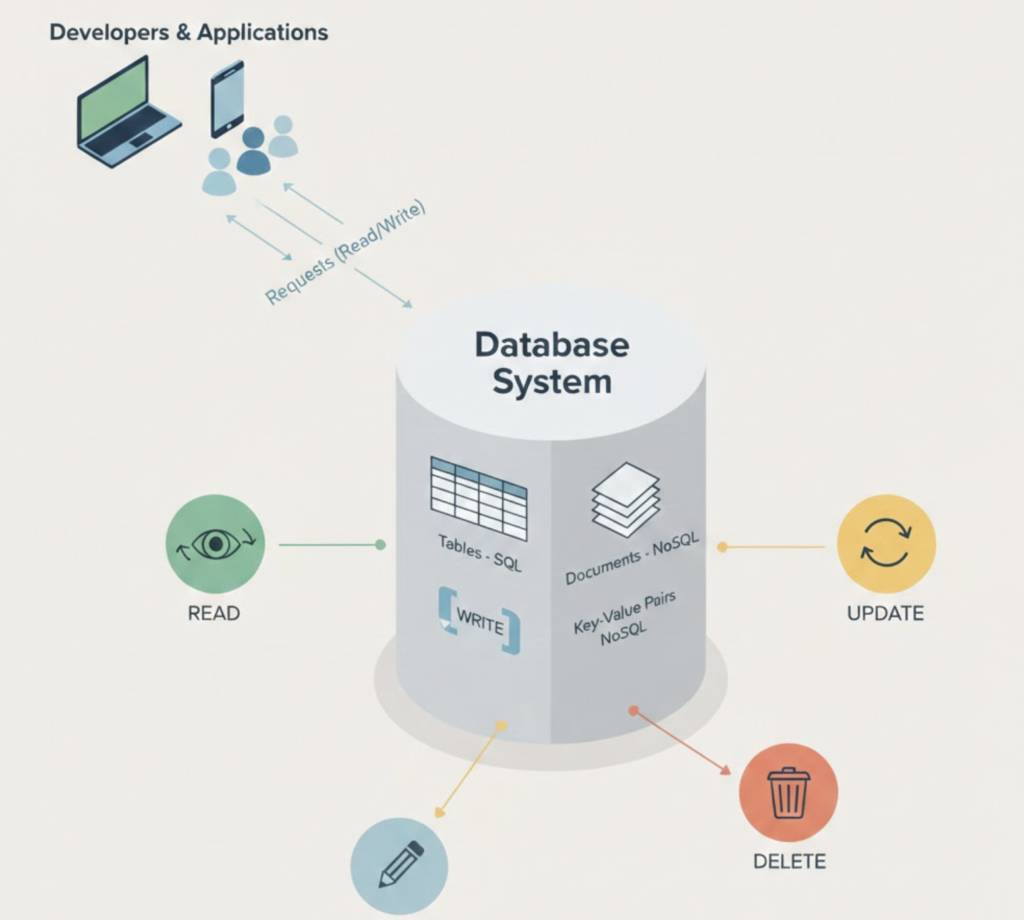


MySQL is an open-source relational database management system widely used in production environments. It follows the relational model, storing data in structured tables and using SQL as its query language.
MySQL is commonly chosen for applications that require reliable transactional processing, predictable performance, and straightforward operational management. It is frequently used in web applications, internal tools, and backend services where data consistency and integrity are critical.
From an operational perspective, MySQL offers mature tooling for backup, replication, monitoring, and recovery. It supports multiple replication models and integrates well with automation and configuration management tools, making it a practical choice for both small-scale deployments and large distributed systems.
Because of its long history and widespread adoption, MySQL has extensive documentation and a strong ecosystem, which simplifies troubleshooting and long-term maintenance in production environments.
How to Install MySQL on Ubuntu
This section describes the standard and recommended method to install MySQL on Ubuntu using the official package repositories.
Prerequisites
- Ubuntu 20.04 / 22.04 or later
- Sudo or root access
- Internet connectivity
Step 1: Update System Packages
Ensure the package index is up to date before installing MySQL.
sudo apt updateStep 2: Install MySQL Server
Install the MySQL server package from the Ubuntu repositories.
sudo apt install mysql-server -yDuring installation, the required dependencies will be installed automatically.
Step 3: Verify MySQL Service Status
After installation, MySQL should start automatically.
sudo systemctl status mysql
sudo systemctl start mysql
Step 4: Secure MySQL Installation
Run the MySQL security script to apply basic hardening.
sudo mysql_secure_installationThis process allows you to:
- Remove anonymous users
- Set a root password
- Disable remote root login
- Remove test databases
These steps are strongly recommended for production environments.
Step 5: Access the MySQL Shell
By default, MySQL uses socket-based authentication on Ubuntu.
sudo mysqlTo confirm the installation:
SELECT VERSION();How to Install MySQL on RHEL
On RHEL-based systems, MySQL is installed using the official MySQL community repository. This ensures access to supported and up-to-date MySQL versions.
Prerequisites
- RHEL 8 / 9 (or compatible distributions)
- Root or sudo access
- Internet connectivity
Step 1: Disable the Default MySQL Module
RHEL ships with a default MySQL module that may not provide the desired version. Disable it before proceeding.
sudo dnf module disable mysql -yStep 2: Add the MySQL Community Repository
Download and install the official MySQL repository package.
sudo dnf install https://dev.mysql.com/get/mysql80-community-release-el8-1.noarch.rpm -yFor RHEL 9, use the corresponding el9 repository package.
Step 3: Install MySQL Server
Install the MySQL server package.
sudo dnf install mysql-community-server -yStep 4: Start and Enable MySQL Service
Start the MySQL service and configure it to start on boot.
sudo systemctl start mysqld
sudo systemctl enable mysqld
Verify service status:
sudo systemctl status mysqldStep 5: Retrieve Temporary Root Password
MySQL generates a temporary root password during installation.
sudo grep 'temporary password' /var/log/mysqld.logMake note of this password.
Step 6: Secure MySQL Installation
Run the MySQL security configuration script.
sudo mysql_secure_installationYou will be prompted to:
- Set a new root password
- Remove anonymous users
- Disable remote root login
- Remove test databases
These steps are recommended for any production setup.
Step 7: Access MySQL
Log in using the root user.
mysql -u root -pVerify the installation:
SELECT VERSION();MySQL Master–Slave Replication Setup (Ubuntu & RHEL)
MySQL replication allows data from a primary (master) server to be copied to one or more replica (slave) servers. This setup is commonly used for read scaling, backups, and high availability.
Prerequisites
- Two MySQL servers installed (Ubuntu )
- Network connectivity between servers
- MySQL running on both nodes
- Binary logging enabled on the primary
- Unique
server-idfor each node
Step 1: Configure MySQL Primary (Master)
Edit the MySQL configuration file.
sudo vim /etc/mysql/mysql.conf.d/mysqld.cnf    # UBUNTU
sudo nano /etc/my.cnf                          # RHEL
[mysqld]
# -----------------------------
# (Master Configuration)
# -----------------------------
server_id = <unique_id> # Set the ID accordingly
log-bin = /DATADISK/mysql/mysql-bin.log
binlog_format = ROW # Recommended for replication consistency
sync_binlog = 1 # Ensures durability of binlogs
binlog_expire_logs_seconds = 604800
binlog_cache_size = 2M
max_binlog_size = 500M
log_replica_updates # Allow cascading replication (if needed)
gtid_mode = ON
enforce_gtid_consistency = ON
binlog_row_image = FULL
binlog_do_db = <db_name> # Set the DB accordingly
Restart MySQL:
sudo systemctl restart mysql      # UBUNTU
sudo systemctl restart mysqld     # RHEL
Step 2: Create Replication User on Primary
Log in to MySQL on the primary server:
mysql -u root -pCreate a replication user:
CREATE USER 'repl_user'@'%' IDENTIFIED BY 'repl_password';
GRANT REPLICATION SLAVE ON *.* TO 'repl_user'@'%';
FLUSH PRIVILEGES;
Step 3: Get Master Status
Lock tables to ensure data consistency:
FLUSH TABLES WITH READ LOCK;Check binary log details:
SHOW MASTER STATUS;Note the following values:
FilePosition
Keep this session open (do not exit yet).
Step 4: Take Data Backup from Primary
In a new terminal (outside MySQL):
mysqldump -u root -p --all-databases --master-data > mysql_backup.sqlAfter backup completes, unlock tables:
UNLOCK TABLES;Step 5: Restore Backup on Replica (Slave)
Copy the backup file to the replica server and restore it:
mysql -u root -p < mysql_backup.sqlStep 6: Configure MySQL Replica (Slave)
Edit MySQL configuration file on the replica.
Ubuntu
sudo vim /etc/mysql/mysql.conf.d/mysqld.cnfRHEL
sudo vim /etc/my.cnfAdd or update:
[mysqld]
server-id=2
relay-log=mysql-relay-bin
read_only=ON
Restart MySQL:
sudo systemctl restart mysql      # Ubuntu
sudo systemctl restart mysqld     # RHEL
Step 7: Configure Replication on Replica
Log in to MySQL on the replica:
mysql -u root -pConfigure replication:
CHANGE REPLICATION SOURCE TO SOURCE_HOST='<MASTER-IP>', SOURCE_USER='repl_user', SOURCE_PASSWORD='<REPL-PASSWORD>', SOURCE_LOG_FILE='mysql-bin.000001', SOURCE_LOG_POS=918, GET_SOURCE_PUBLIC_KEY=1, SOURCE_SSL=0;(Use the exact File and Position values from Step 3.)
Start replication:
START SLAVE;Step 8: Verify Replication Status
Check replication health:
SHOW SLAVE STATUS\GEnsure the following values are correct:
Slave_IO_Running: YesSlave_SQL_Running: YesSeconds_Behind_Masteris low or0