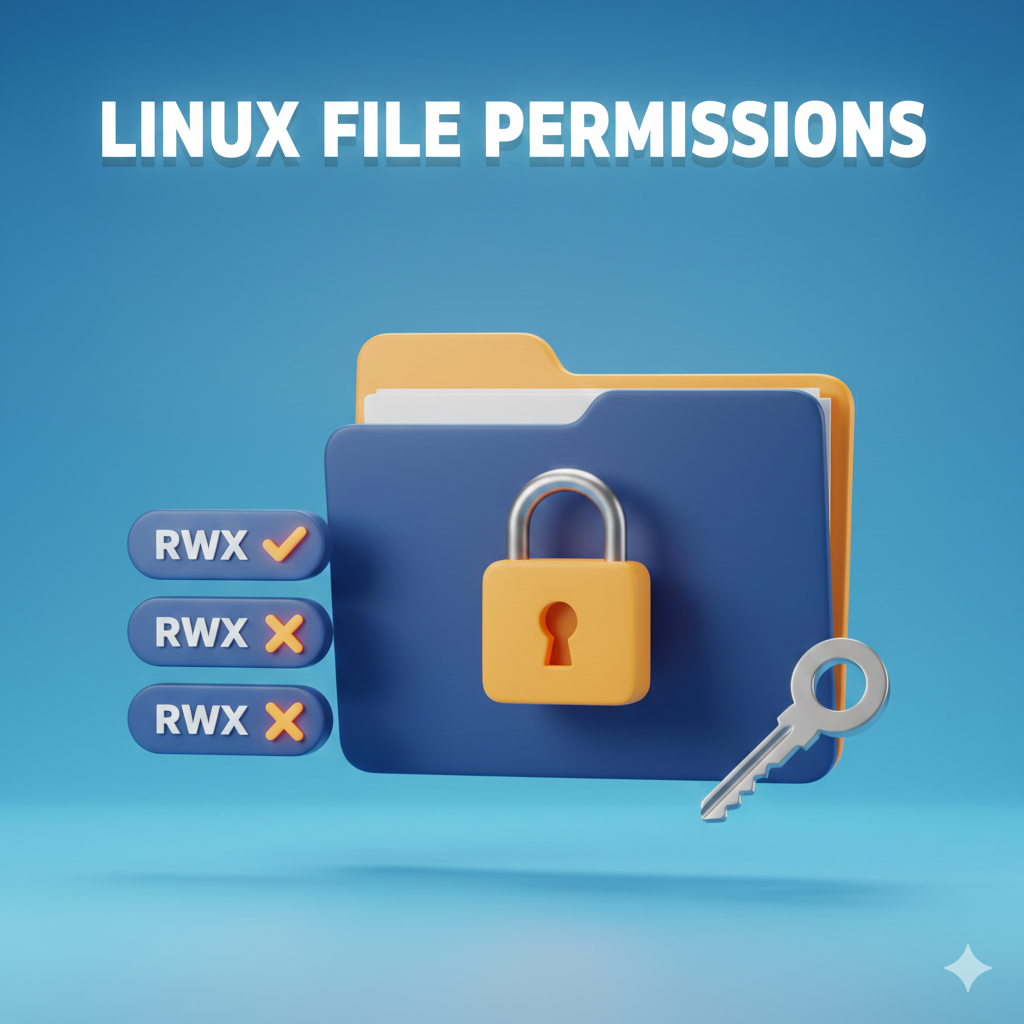
Linux is a multi-user operating system, so it uses a strong permission model to control who can read, write, or execute files and directories.
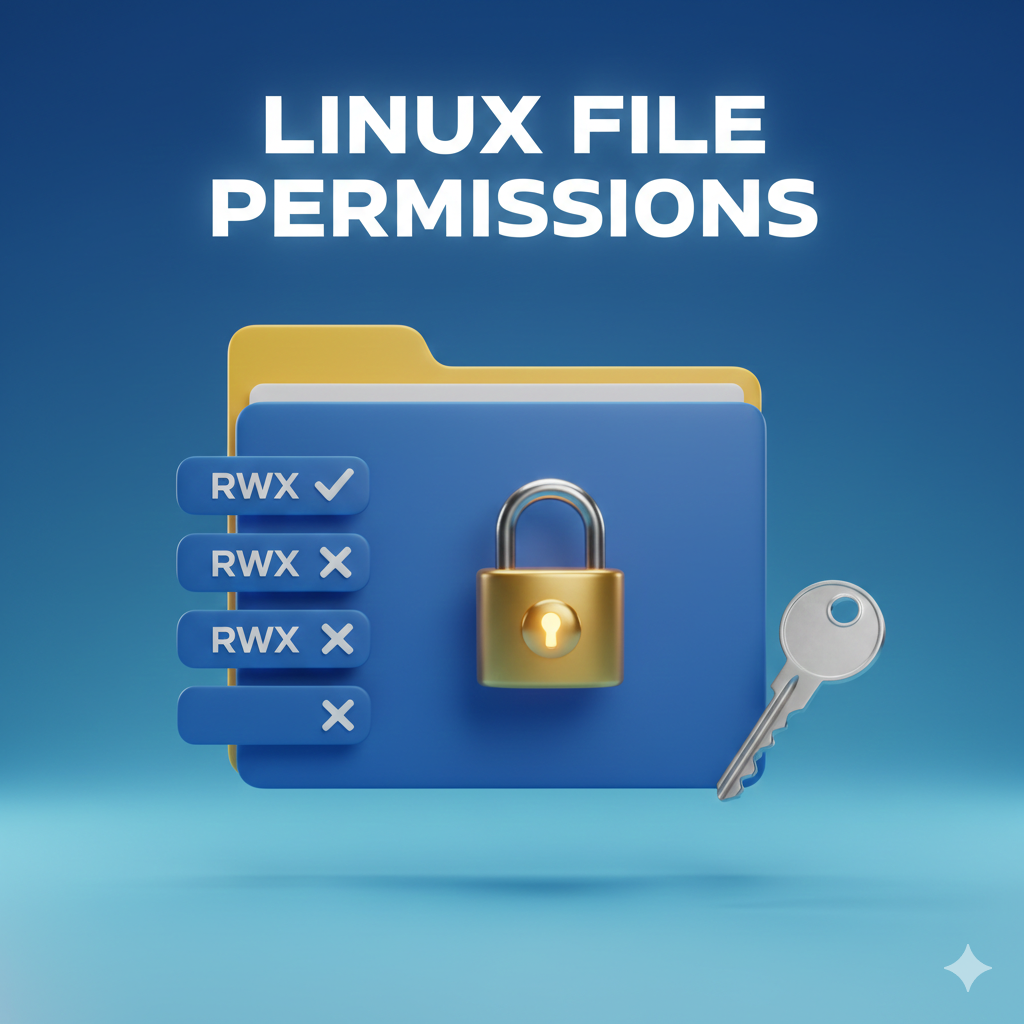
Permission Structure in Linux
Every file and directory has three permission levels:
| Level | Description |
| User (u) | Owner of the file |
| Group (g) | Group associated with the file |
| Others (o) | All other users |
Each level supports three permission types:
| Permission | Symbol | Meaning |
| Read | r | View file content / list directory |
| Write | w | Modify file / create-delete files |
| Execute | x | Run file / access directory |
Viewing File and Directory Permissions
Use ls -l:
ls -l file.txt
Example output:
-rwxr-xr–
Breakdown:
| Section | Meaning |
| – | File type (d= directory) |
| rwx | Owner permissions |
| r-x | Group permissions |
| r– | Others permissions |
File vs Directory Permissions (Important Difference)
📄 File Permissions
| Permission | Effect |
| r | Read file content |
| w | Modify file |
| x | Execute file |
📁 Directory Permissions
| Permission | Effect |
| r | List directory content (ls) |
| w | Create/delete files |
| x | Enter directory (cd) |
Changing Permissions Using chmod
Linux provides two ways to assign permissions:
Method 1: Symbolic Mode (Human-Readable)
Syntax:
chmod [u/g/o/a][+/-/=][rwx] file
Examples:
chmod u+x file.sh # Add execute to owner
chmod g+w file.txt # Add write to group
chmod o-r file.txt # Remove read from others
chmod a+r file.txt # Add read to all
Directory Example:
chmod u+rwx mydir
Method 2: Numeric (Octal) Mode
| Number | Permission |
| 0 | — |
| 1 | –x |
| 2 | -w- |
| 3 | -wx |
| 4 | r– |
| 5 | r-x |
| 6 | rw- |
| 7 | rwx |
Common Permission Values:
| Permission | Meaning |
| 755 | Owner full, others read+execute |
| 644 | Owner read/write, others read |
| 700 | Owner only |
| 777 | Full access to all (not recommended) |
Examples:
chmod 755 script.sh
chmod 644 file.txt
chmod 700 private_dir
Recursive Permission Assignment
Apply permissions to directories and all contents:
chmod -R 755 /data/app
Use carefully in production systems.
Changing File Ownership (chown)
Syntax:
chown user file
chown user:group file
Examples:
chown aman file.txt
chown aman:devops file.txt
Recursive:
chown -R aman:devops /data/app
Changing Group Ownership (chgrp)
chgrp devops file.txt
Default Permissions and umask
The umask defines default permissions for new files/directories.
umask
Example:
umask 022
| Object | Default Permission |
| File | 644 |
| Directory | 755 |
Special Permissions (Advanced)
| Permission | Symbol | Use |
| SUID | s | Run as file owner |
| SGID | s | Group inheritance |
| Sticky Bit | t | Restrict delete |
Examples:
chmod 4755 file
chmod 2775 directory
chmod 1777 /tmp
Best Practices for Permissions
✔ Use least privilege principle
✔ Avoid 777 permissions
✔ Separate file and directory permissions
✔ Regularly audit using ls -l
In conclusion,
understanding how to manage files, directories, and permissions in Linux is a fundamental skill for system administrators, DevOps engineers, and beginners alike. By mastering these concepts, you can improve system security, maintain proper access control, and confidently manage Linux systems in real-world environments.